
Clearing Cached License Info
When PowerWorld products are unlocked with a software key, cached license information is saved to the system so the software can unlock without continually re-loading the key file. If something goes wrong with those files, however, it can prevent the software from running, even when a valid license key has been loaded. In these cases, it’s easiest to just delete the cached files and unlock with a new license key.
The first method to try is to right-click on the unlock dialog (anywhere in the window that isn’t an entry widget or button), and select the “Erase License Information” option that pops up, then re-load your existing license file corresponding to the current Machine ID.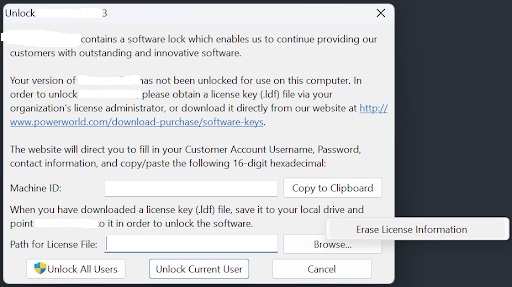
If that doesn’t resolve the issue, you may need to perform a manual clearing. The cached license information is saved to two locations; %LOCALAPPDATA%\PowerWorld and %PROGRAMDATA%\PowerWorld. To resolve those variable paths to the specific locations configured on your machine, simply copy/paste each into the path bar of a Windows File Explorer window and hit Enter:

Any cached license information will be saved in “.il” and “.li” files. If they’re missing, ensure you’re able to write to each location.
After you delete those files and run the software again, you’ll notice the Unlock dialog provides a new Machine ID. Obtain a new software key for that machine ID (either through our website or by contacting softwarelock@powerworld.com with your Machine ID and user credentials), load it in the dialog. Your software should now unlock.
Tags: How-to,Retriever,Simulator
December 11, 2025