Memo Text
Memo Text display objects are used to show several lines of text on the oneline within an enclosing box.
Edit Mode
To add a Memo Text object to the oneline, select Background > Memo Text from the Individual Insert ribbon group on the Draw ribbon tab. Then click and drag to create a rectangle on the oneline; this rectangle will contain the lines of text you enter.
To modify the contents of a Memo Text object, position the cursor anywhere on the object and right-click and choose the option to Edit Memo Text. To change the formatting of a Memo Text object, select the object with a left-click, then select  from the Formatting ribbon group on the Draw ribbon tab; this will bring up the Font Properties tab of the Format Multiple Objects dialog box.
Enabled Load Memo Text as AUX file or AXD File (For use in Run Mode)
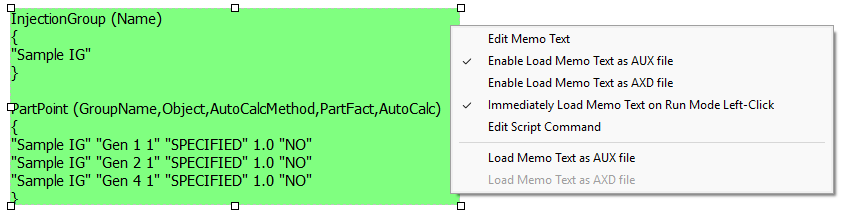
Special features were added in December 16, 2024 patch of Version 23 that allow you to specify that the contents of the Memo Text can then be loaded as an AUX or AXD file. To configure this option you must right-click on the Memo in Edit Mode and then check either the box Enable Load Memo Text as AUX file or Enable Load Memo Text as AXD file. When either of these are checked there is then another option available to Immediately Load Memo Text on Run Mode Left-Click which will make the left-click behavior in Run Mode be to open the contents of the Memo Text as though it is an AUX file or an AXD file. If the Immediately Load Memo ... option is not checked then the right and left-click behavior in Run Mode will both open up a drop-down menu giving you the option to Load Memo Text as AUX file. These special flags with the Memo are stored inside the field TextObjectFullText when looking at the Background\Text Boxes in the Display Explorer.
There are also options in the Edit Menu drop down to Load Memo Text as AUX file (or AXD file) as well as an option to Edit the ScriptCommand that provides access to editing the special custom left-click action available with many display objects.